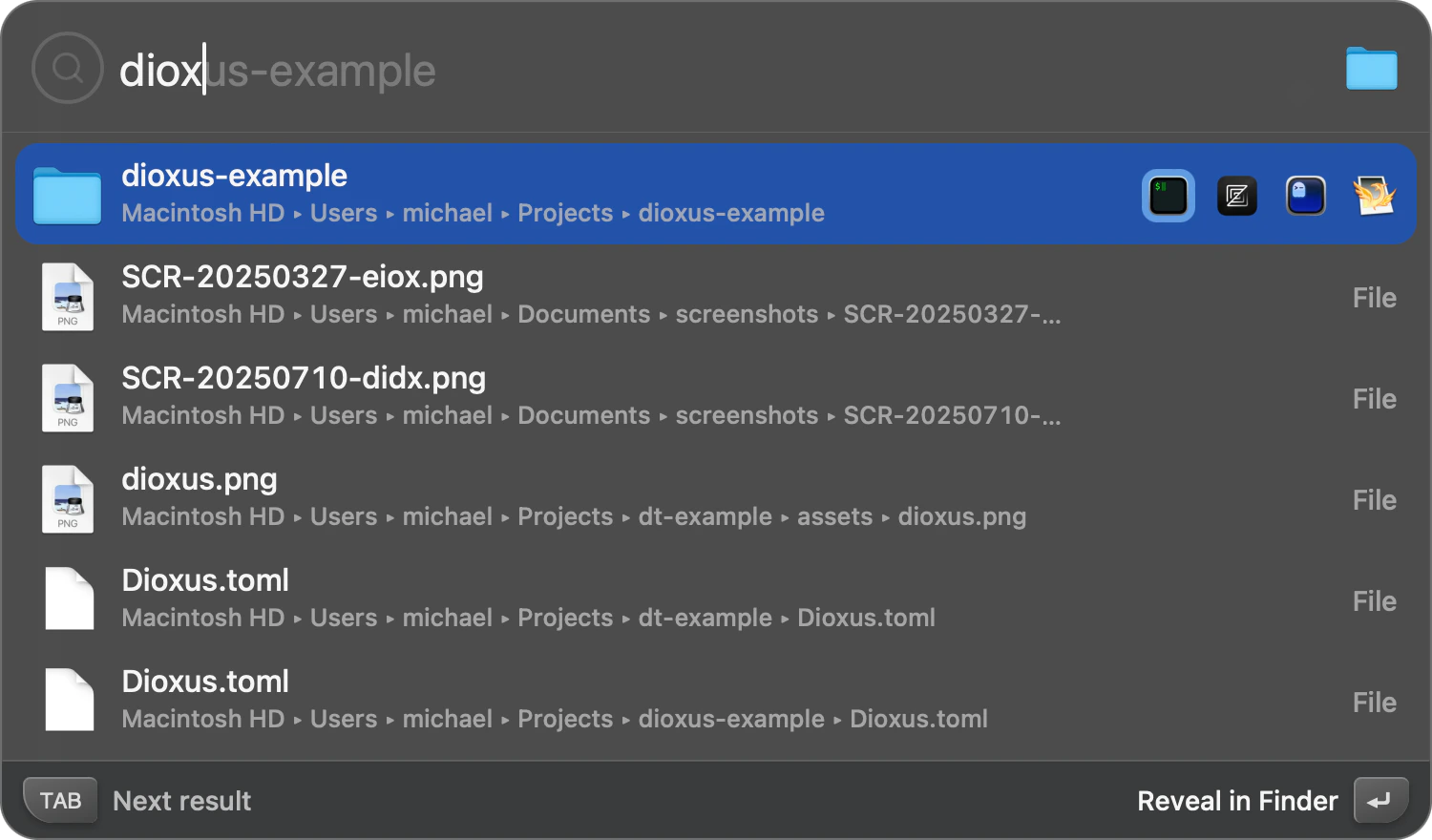
What is Filetools?
Filetools is the fastest way to search and open files and folders on your Mac using exactly the apps you need. It’s a replacement for the “Open With” user experience. Traditionally, Open With requires you to find the file in Finder, then right-click it, hope that the app you need is in that list. When using Open With for images, it can look something like this: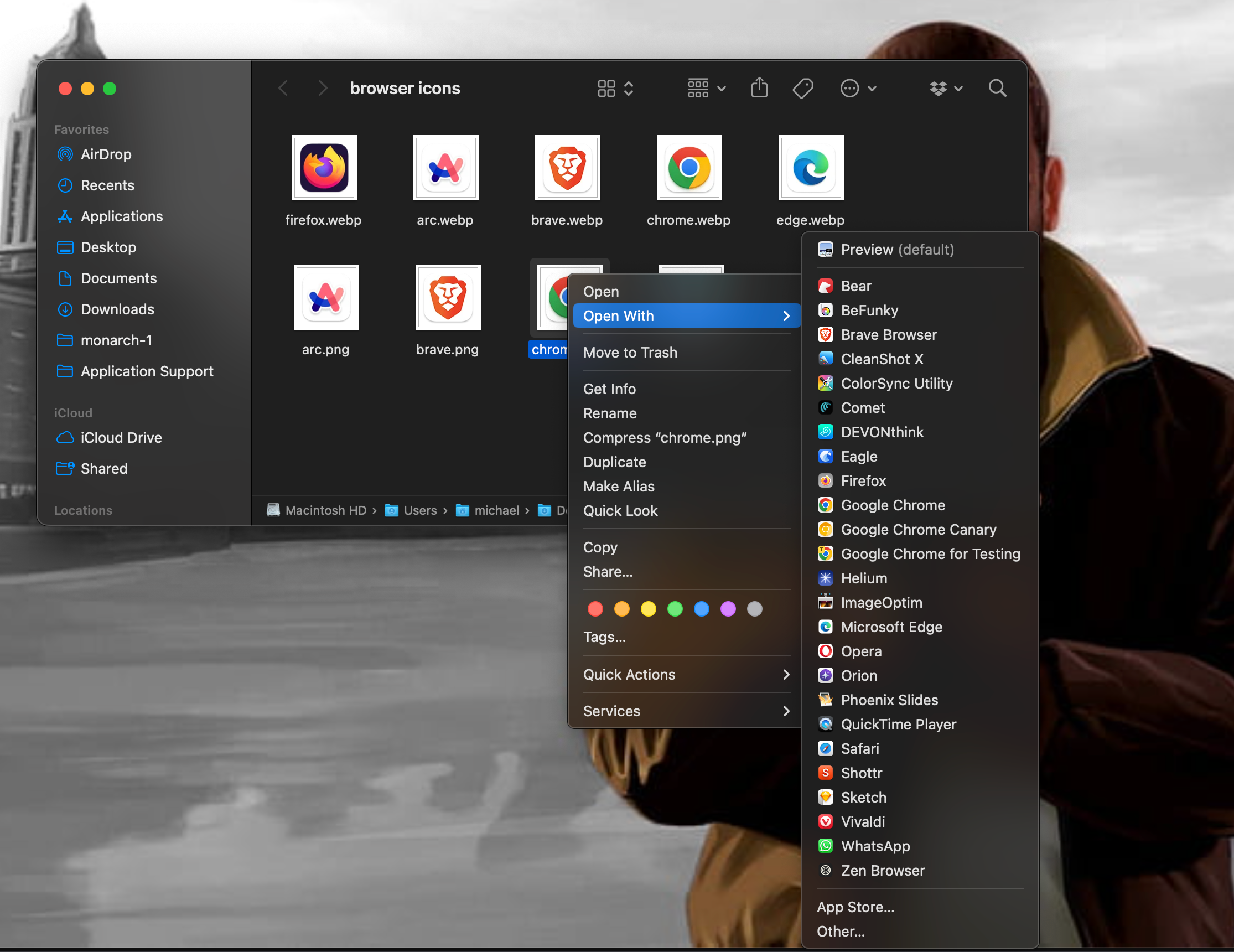
⌘ + / and activate Instant Send on any item. As of v0.9.10, Monarch takes this power even further with Filetools!
Setting up Filetools
Go to Monarch Settings > Filetools and click the “Add Filetools” button in the top right to create a new set of Filetools. Filetools are like Quick Actions that you specify for each individual type of file. Specify a file extension such asjson or md (with no dot). Folders are special in that they do not have an extension (usually). To specify filetools for a folder, simply enter folder. And then click the + button in the Applications column to specify which apps you’d like to use to open that kind of file.
Each app will appear on the right-hand side of Monarch whenever you search for a file of that type. If you press Enter right away after searching the file, Monarch opens the file in the first app. So the order you set your apps in matters. You can click and drag the apps to reorder them as you need to. Another way to think about this setup is “the first app on the left is now the default app this file will open in”.
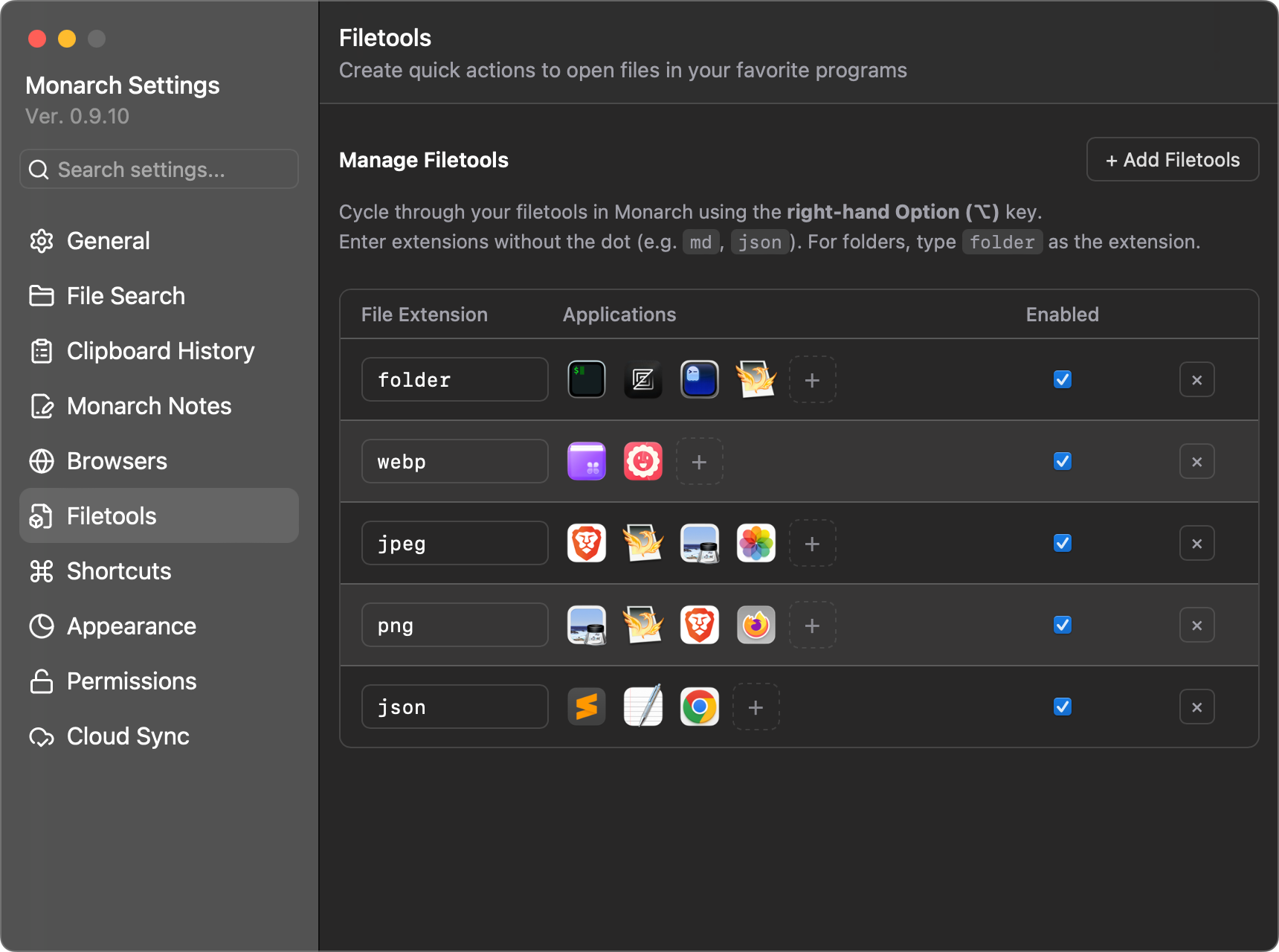
Categories for Filetools
You may not want to add separate filetools for each individual image type, especially if you’ll be using the same tools for every image, regardless of the extension. In this case, Monarch allows you to specify a type of file instead of the extension type, to give you control over everything at once. Instead of creating separate filetools forpng, gif, webp, jpeg and jpg and others, you can simply create one set and use IMAGE. This will then look at the type of the file and display your filetools for the appropriate type of file, regardless of its extension. The same applies for VIDEO to encapsulate all video file types at once.
Available Filetools categories
IMAGEto capture all images, including gifs.VIDEOto capture all video files.AUDIOto capture all sound files.ARCHIVEto capture all files like zip, tar.gz, etc.FONTto capture all font type files.folderto capture all of your folders.
Type Override
If you have all of your images underIMAGE, you can also still add a specific image type like gif to use your GIFs (pronounced “gif”) and it will override the IMAGE filetools you have setup. This gives you maximum control!
Using Filetools
To use Filetools, all you have to do is search for the appropriate file in Monarch. Once you find the file, the first app is already highlighted. If you want to use any of the other apps, then you can either click the app, or you can cycle through them with the right-hand Option key (⌥), cycling left by holding shift as you press it.